
User Manual
Before you start: Git terms
Git records versions of a project so its history can be tracked. GitHub hosts Git repositories online so people can store and share them. DriftGH brings that workflow into Grasshopper alongside live editing. You can use the menus below without running Git commands yourself.
| Term | In a typical Git workflow | In DriftGH |
|---|---|---|
| Repository (repo) | A project's stored history, including its commits. Repositories can live on your computer or on a service such as GitHub. | The GitHub repository containing your .ghx document. Its owner, repository name and file path identify the document you open. |
| Pull | Fetches changes from a remote repository and integrates them into your current local branch. | Opens an existing .ghx document and joins its live session. If others are already connected, you join their current canvas, including edits not yet pushed. Otherwise, the session starts from the file saved on GitHub. |
| Push | Sends existing local commits to a remote repository. Pushing does not create a commit by itself. | Saves the current shared document to GitHub, creating a commit when the file has changed. DriftGH handles both committing and pushing. Available while connected. |
| Push as new | A DriftGH action for creating a destination and making the first push; Git's standard command is push. |
Pushes the current Grasshopper document to a new .ghx destination under your GitHub account, creates a repository if needed, and starts a live session. To open an existing file, use Pull. |
| Commit | A recorded project revision with an author and message. A local commit is shared with others by pushing it. | A saved revision of your .ghx file in GitHub history. Push creates it for you when there are changes; there is no separate Commit step in the menu. |
| Live session | Git exchanges recorded revisions; it does not provide live canvas editing on its own. | Participants editing the same document receive each other's changes automatically. Git Connected means you are in a live session; it does not mean every edit has already been committed to GitHub. |
For an existing project, use Pull → edit → Push. For a new project, use Push as new → edit → Push. During a live session, you do not need to press Pull or Push for each change to appear on your collaborators' canvases.
Push as new can also save a new file in an existing repository owned by your GitHub account. Enter a different file name or a path such as definitions/new-project.ghx. If that file already exists, use Pull to open it; Push as new does not overwrite it. The Private repository option applies when creating a repository and does not change the visibility of an existing repository.
Getting started
1. Sign up on the DriftGH website using your GitHub account
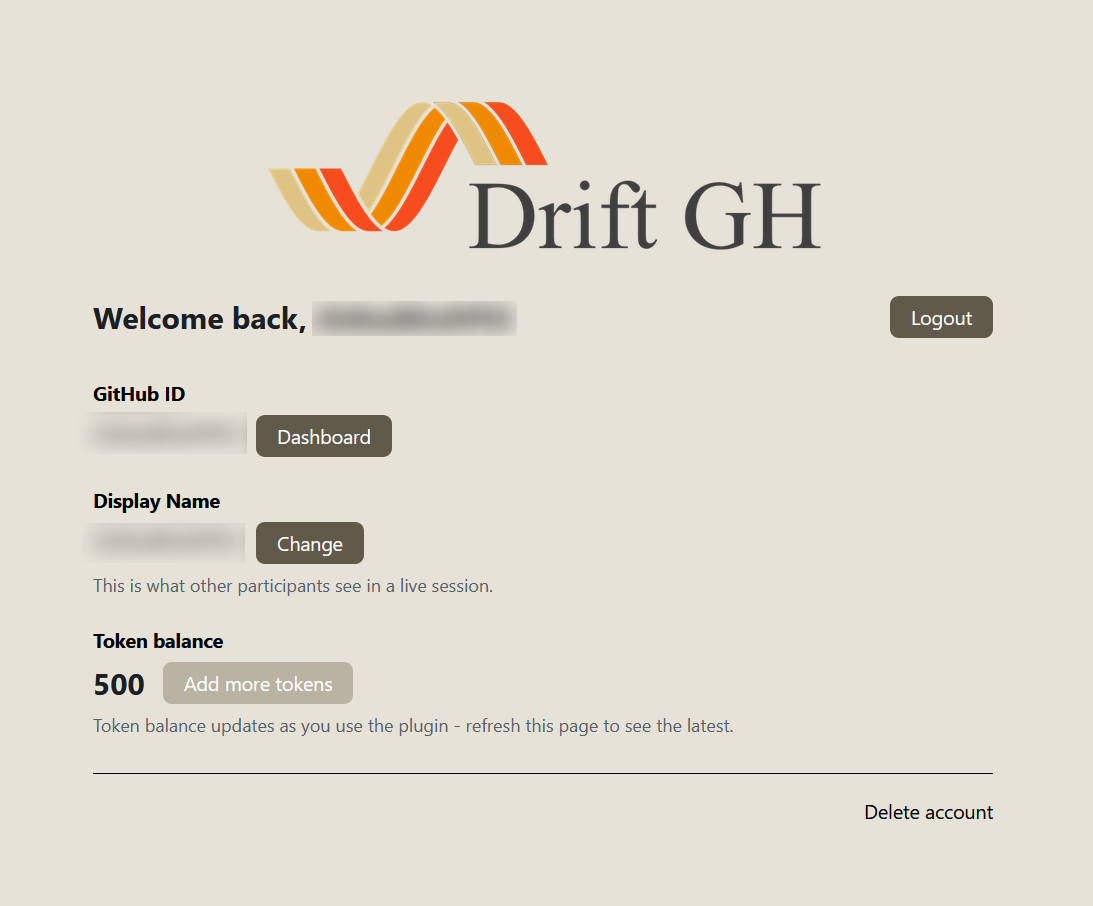
Before opening a project in Grasshopper, visit driftgh.com and click Sign in / Sign up with GitHub at the top right or bottom of the page. Sign in with the GitHub account you will use in the plugin and complete any authorization prompts.
When your personal account page appears with your GitHub ID, display name and token balance, your DriftGH signup is complete. If you already have an account, signing in takes you to this same page. You can now return to Rhino and open Grasshopper.
2. Open the Git menu
When Grasshopper is not connected to a live session, the menu reads Git Disconnected.
Earlier screenshots show Publish as new; from 0.6.1, the menu is named Push as new.
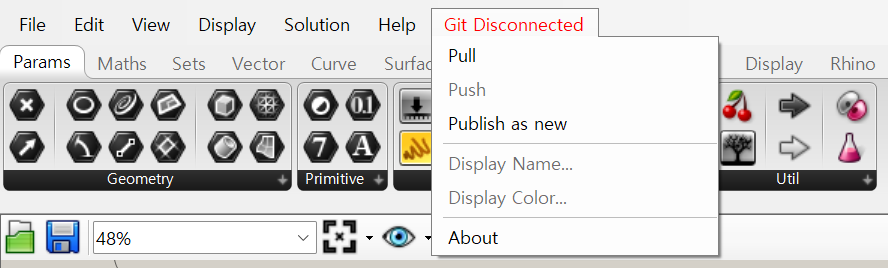
| Menu item | What it does |
|---|---|
| Pull | Opens an existing Grasshopper .ghx project from GitHub and joins its live session. |
| Push as new | Pushes the current Grasshopper document to a new file path, creating the repository if needed. |
| Push | Commits the current shared document back to GitHub after you are connected. This is disabled while disconnected. |
The following steps show how to open an existing project with Pull.
3. Enter the repository and file details
A repository is the project's storage space on GitHub, under its owner's account or organization. Choose Pull to open the Pull from GitHub dialog.
Earlier screenshots use the previous dialog title and longer field labels.
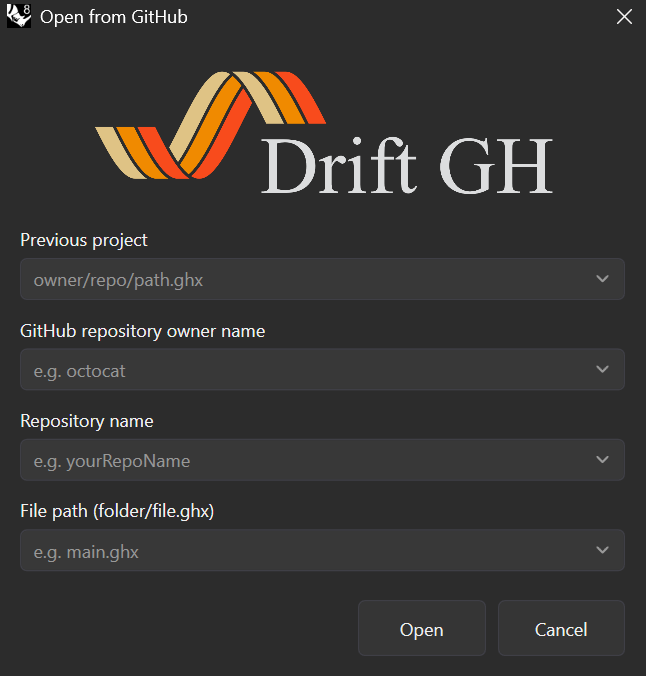
Enter the exact owner, repository name and path to the .ghx file you want to edit:
| Field | What to enter | Example from the screenshots |
|---|---|---|
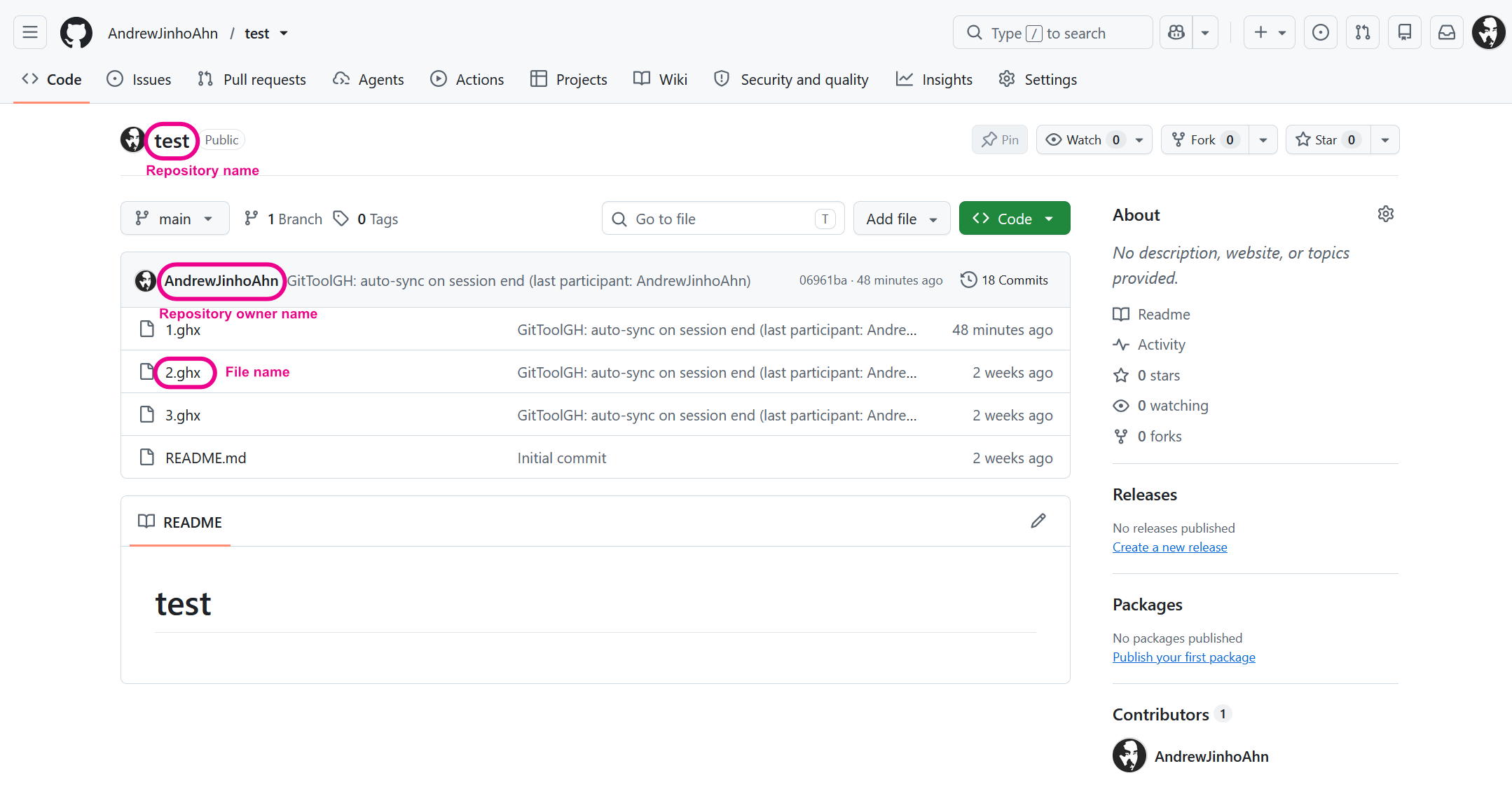
| Repo owner name | The account or organization that owns the repository. | AndrewJinhoAhn |
| Repo name | The repository's name, without the owner or a full URL. | test |
| File path (folder/file.ghx) | The file's path inside the repository, including the .ghx extension and any folders. |
1.ghx |
For a file inside a folder, enter a path such as definitions/main.ghx. The owner
does not have to be your own GitHub username, but your account must have the required
write access to the repository for live editing. For a shared repository, ask
its owner to add you as a collaborator with write permission. Public visibility
or read-only access alone does not grant access to the live document.
Previous project lets you select a project you opened before.
You can find the owner and repository name on GitHub. In the repository list below,
AndrewJinhoAhn/test means owner AndrewJinhoAhn, repository test.
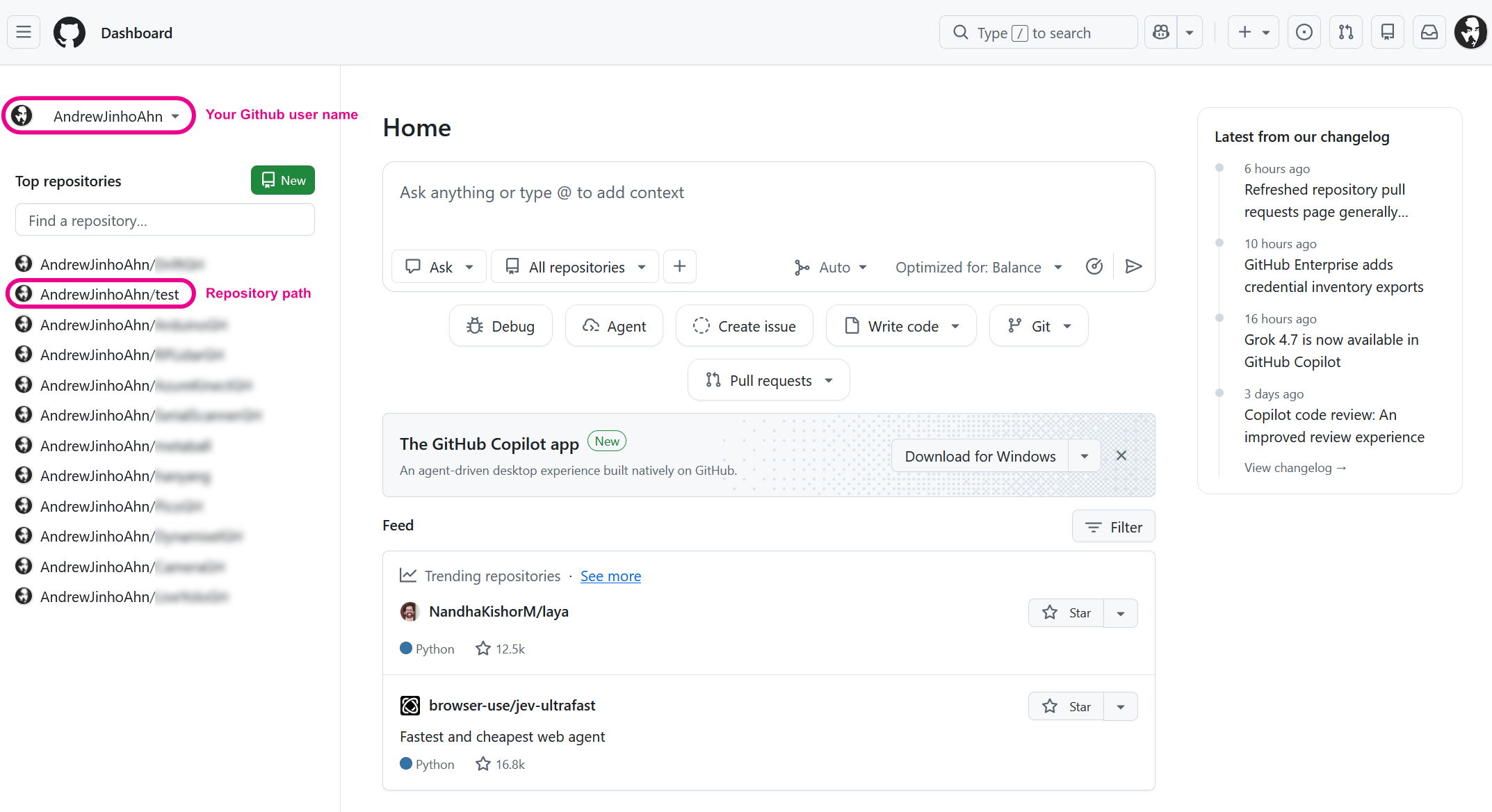
Open that repository to find the exact .ghx filename. This example contains
1.ghx, 2.ghx and 3.ghx.
Return to the plugin dialog and click Open. After sign-in and loading finish, the document opens locally in Grasshopper for live collaborative editing.
4. Connect your GitHub account in the plugin
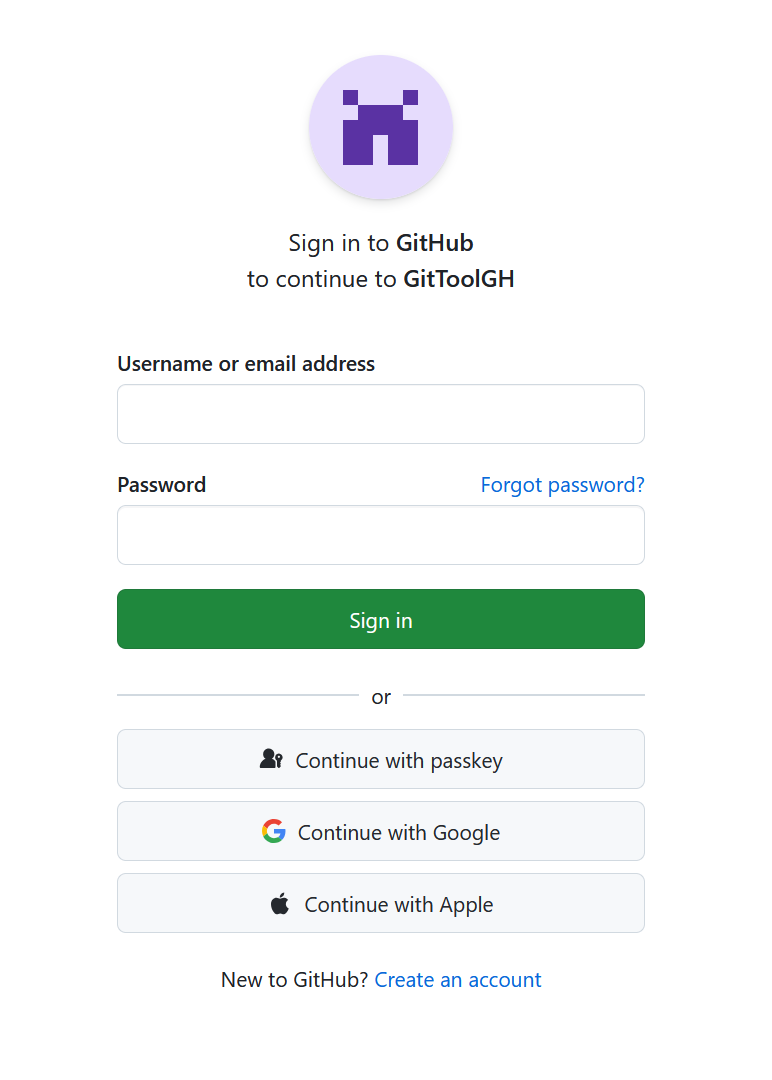
On your first connection, sign in to GitHub and authorize the plugin when prompted. Use the same GitHub account you used for website signup in step 1. The GitHub authorization screen may identify the app as GitToolGH; this is the app name used by DriftGH's plugin sign-in.
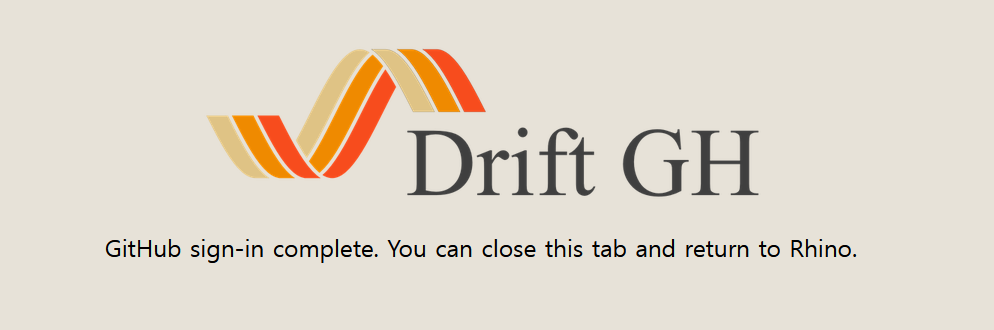
When the browser displays GitHub sign-in complete, you can close that tab and return to Rhino.
GitHub authorization connects the plugin to your GitHub account. With website signup already complete, your original Pull continues automatically.
Skipped website signup, or prompted to sign up?
From 0.5.0, the plugin opens the DriftGH website and keeps a Complete your DriftGH signup window open in Rhino. On the website, choose Sign in / Sign up with GitHub and use the same GitHub account you used in the plugin. Leave the plugin's waiting window open: the pending Pull continues automatically when signup completes. You can reopen the website with Open driftgh.com.
The plugin waits for signup for up to five minutes. If you cancel or the wait expires, finish signup and choose Pull again, then select your Previous project. The same automatic continuation also applies to Push as new.
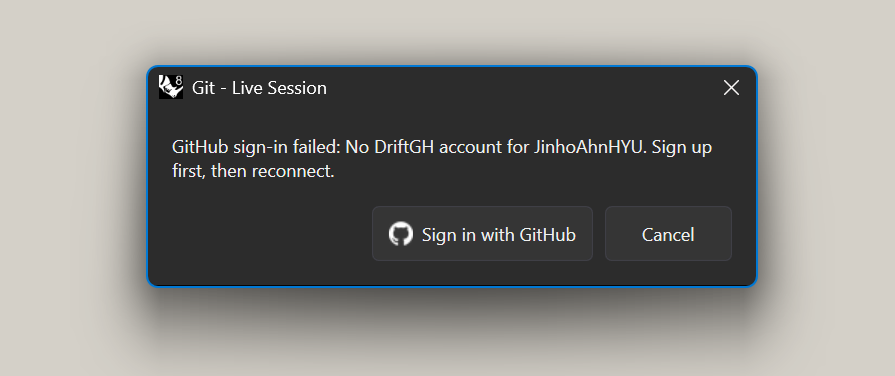
Using a version before 0.5.0?
Older versions show the message below instead of waiting. Click Sign in with GitHub, complete website signup, then return to Grasshopper and choose Pull again.
5. Return to Grasshopper and start editing
Once authentication and document loading finish, the menu changes to Git Connected. You can now edit the document live. Other collaborators should open the same owner, repository and file path to join the same session.
Use Push when you want to commit the shared document back to GitHub.